Your AI assistant, inside your workspace
Stop switching between apps. Connect any LLM to manage projects, approve leave, review candidates, and generate reports — all in plain English, directly in Hplix.
Before Hplix MCP
- Switch between 5+ apps for a status update
- Manually copy data into reports and emails
- Approve requests one by one in the UI
- Re-explain context every time you open a new tool
- Build custom integrations for every workflow
After Hplix MCP
- Ask in plain English — get instant, accurate answers
- AI generates summaries and reports on demand
- Review and bulk-approve with a single confirmation
- AI retains full context across projects, people, and data
- One MCP connection covers your entire workspace
Capabilities
What you get with Hplix MCP
One connection covers your entire workspace. Here's what any connected LLM can do — all with your approval before any write action is taken.
Project Management
Create and update tasks, bugs, stories, and epics; manage sprints and backlogs; view boards and timelines; generate status summaries and standup briefings.
HR & Workforce
View employees and departments; approve or reject leave requests; handle overtime; review and log timesheets; check leave balances.
Recruitment
Manage hiring campaigns and pipeline stages; add and evaluate candidates; parse CVs; move applicants through rounds; compare evaluations side by side.
Documents & Files
Create, edit, and organize documents in spaces; manage versions and drafts; browse and share files in workspace storage.
Finance
Create and manage invoices and vendors; track payment status; export financial reports; update payment records.
Integrations
Manage connections to GitHub, Jira, Figma, Slack, Google Drive, VPN accounts, and cloud services.
Quick start
Connecting in 3 steps
No engineering team required. Works with any MCP-compatible LLM client — Claude, Cursor, Windsurf, and more.
Add the MCP server to your LLM client
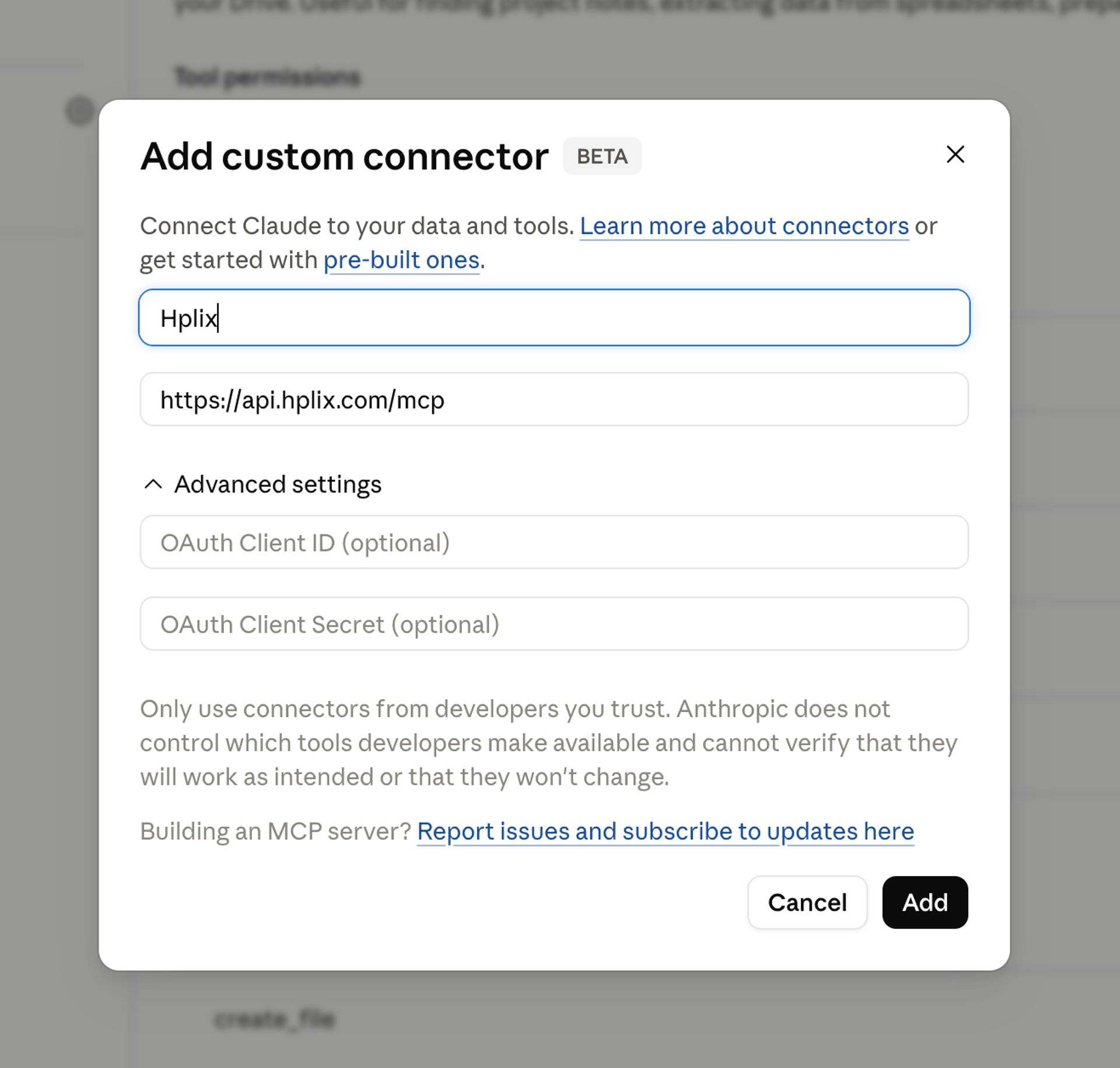
In your LLM client config (Claude desktop, Cursor, or any MCP-compatible tool), add the Hplix MCP server URL:
{
  "mcpServers": {
    "hplix": {
      "type":  "url",
      "url":   "https://api.hplix.com/mcp",
      "name":  "hplix-mcp"
    }
  }
}
Authenticate via OAuth
On first use, your LLM client will prompt you to sign in to your Hplix account. This grants scoped, revocable access — no API keys to manage, no tokens to rotate. Disconnect at any time from Hplix Settings.
Ask your AI anything
The LLM uses Hplix MCP to fetch data, take actions, and present results directly in conversation. Every write action asks for your explicit confirmation before executing.
Claude setup
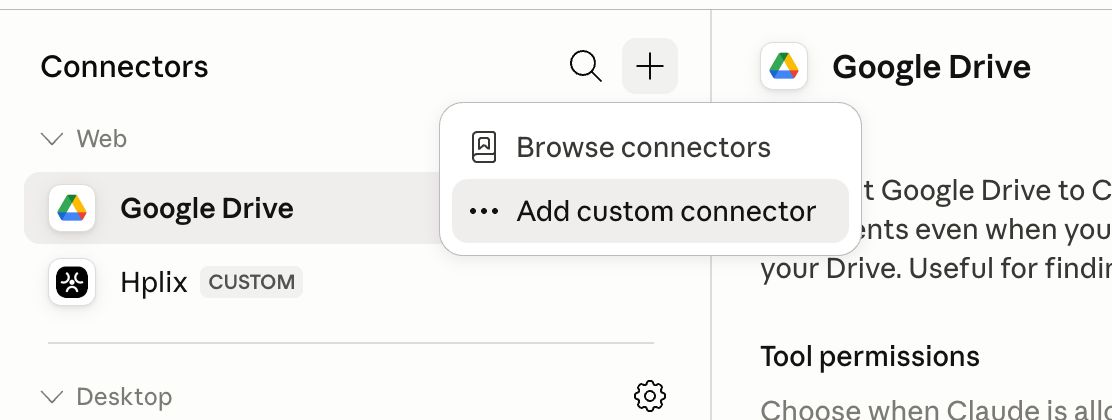
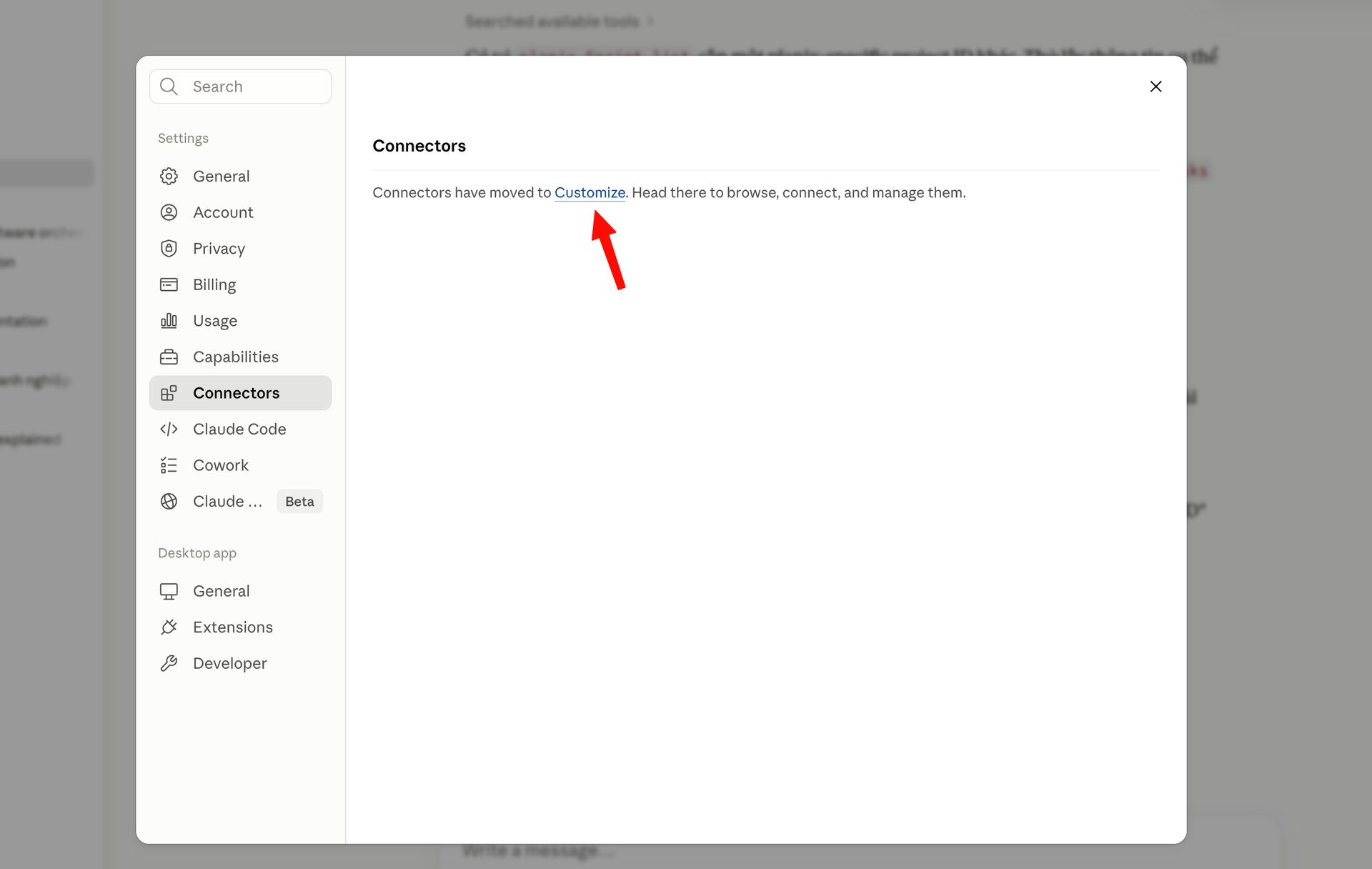
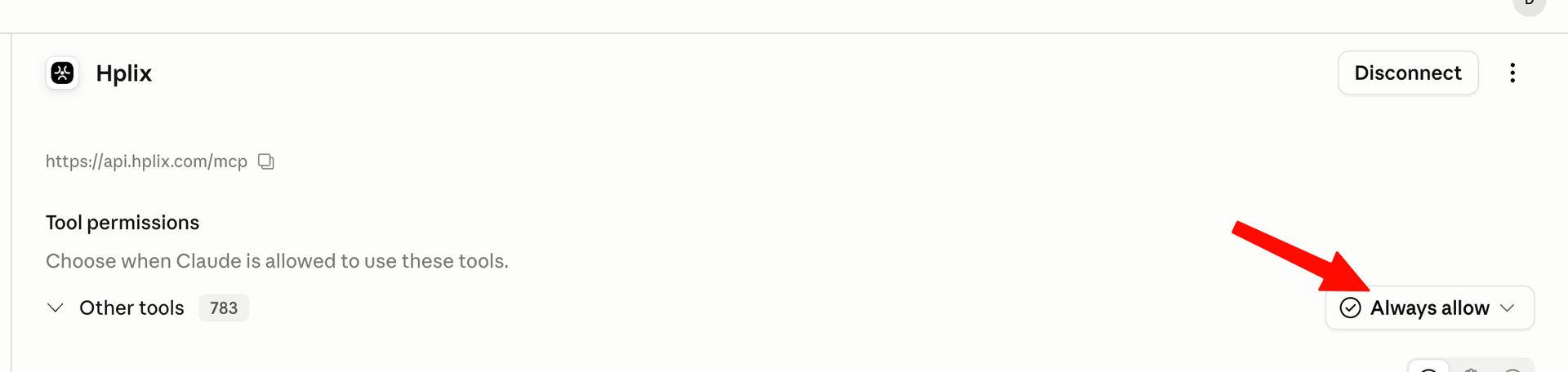
Connecting Hplix to Claude — step by step
These screenshots show the exact flow for adding Hplix as a custom connector in Claude.ai. Takes under 3 minutes.
Use cases
Sample use cases & prompts
Real examples of what you can ask once Hplix MCP is connected. Choose your role to see the most relevant prompts.
Project management
Project summary
Create a task
Standup briefing
HR & leave management
Approve pending leave
Headcount by department
Who's out today?
Recruitment & finance
Pipeline overview
Invoice status
Create an invoice
How confirmations work: Any action that creates, updates, or deletes data in Hplix requires your explicit approval before the LLM executes it. It always shows you exactly what it plans to do and waits for a clear "yes" — you are always in control.
For developers
Using Hplix MCP in your own app
Building on an LLM API? Pass the Hplix MCP server directly in your request to build AI-powered workflows that read and write workspace data programmatically. Works with any MCP-compatible API.
Example — AI-powered leave approval bot
Schedule a job that reviews pending leave requests and approves routine ones — using any LLM that supports MCP tool use.
// Works with Claude, GPT-4o, Gemini, or any MCP-compatible LLM API
const response = await fetch("https://api.anthropic.com/v1/messages", {
  method: "POST",
  headers: { "Content-Type": "application/json" },
  body: JSON.stringify({
    model:       "claude-sonnet-4-6",
    max_tokens:  1024,
    mcp_servers: [{
      type: "url", url: "https://api.hplix.com/mcp", name: "hplix-mcp"
    }],
    messages: [{
      role: "user",
      content: "Review all pending leave requests. Approve any that are 3 days or fewer with a stated reason. List what you approved."
    }]
  })
});
Example — Weekly project digest
Run every Monday morning to generate an executive-level summary across all active projects — ready to post to Slack or email to leadership.
const response = await fetch("https://api.anthropic.com/v1/messages", {
  method: "POST",
  headers: { "Content-Type": "application/json" },
  body: JSON.stringify({
    model:       "claude-sonnet-4-6",
    max_tokens:  2048,
    mcp_servers: [{
      type: "url", url: "https://api.hplix.com/mcp", name: "hplix-mcp"
    }],
    messages: [{
      role: "user",
      content: "Generate a weekly digest across all active projects. Include task velocity, top blockers, and team workload. Format as a concise executive summary with bullet points."
    }]
  })
});
Security & trust
Built for enterprise trust
Enterprise buyers ask hard questions. Here are the honest answers.
OAuth-based authentication
LLMs connect to Hplix using standard OAuth 2.0. No passwords or API keys are stored by the LLM — access is scoped, revocable, and managed entirely through your Hplix account settings.
You approve every write action
The LLM never creates, updates, or deletes data without your explicit confirmation. Read operations are instant; write operations always require a clear “yes” from you first.
Scoped data access
The LLM can only access data your Hplix account has permission to see. It respects your existing workspace roles and permissions — it cannot access data outside your workspace or bypass any access controls.
Full audit trails
All actions taken through Hplix MCP are recorded in your Hplix activity logs, identical to actions taken via the web interface. You have a complete audit trail of what was done and when.
Disconnect at any time
Revoke LLM access from Hplix Settings → Integrations at any time. Disconnecting immediately invalidates all active tokens — no support ticket needed.
Your data stays yours
Hplix workspace data is not used to train AI models. The LLM processes your data only to answer your current request — it is not stored, shared, or retained beyond the conversation.
FAQ
Frequently asked questions
Questions we hear from clients before they connect.
Ready to connect your workspace?
Setup takes under 5 minutes. Works with any MCP-compatible LLM — no engineering required to get started.